Payment Gateways
Configure PayPal, Stripe, Mollie, Paystack, Razorpay, and SSLCommerz payment gateways in Mentor LMS.
Mentor LMS supports multiple payment gateways to process course purchases.
Accessing Payment Settings
- Log in to your admin dashboard
- Navigate to Settings → Payment Settings
Supported Gateways
| Gateway | Region |
|---|---|
| PayPal | Global |
| Stripe | Global |
| Mollie | Europe |
| Paystack | Africa |
| Razorpay | India |
| SSLCommerz | Bangladesh |
You can enable one or multiple gateways simultaneously. Students see all enabled options at checkout.
PayPal
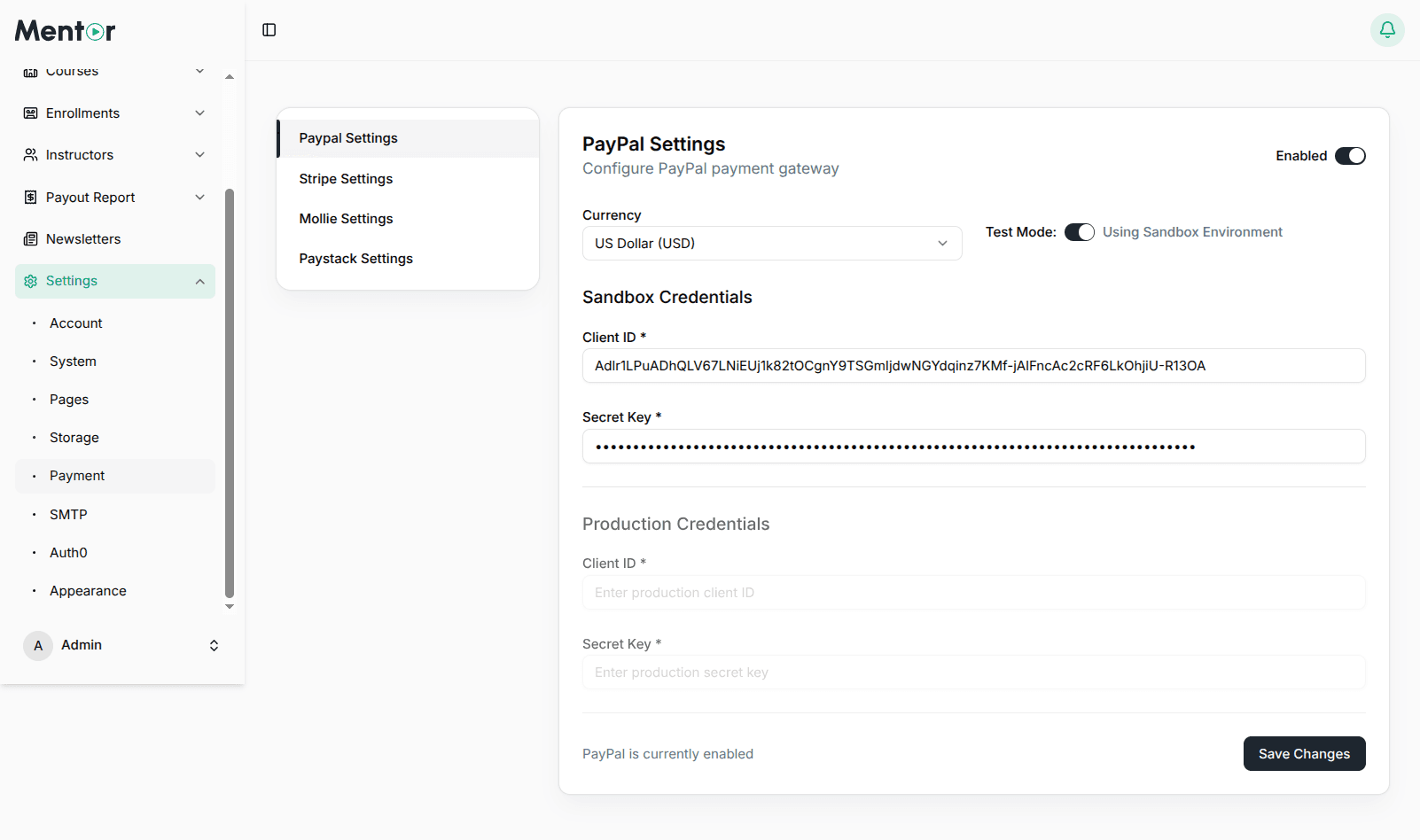
- Toggle Enable PayPal to Yes
- Select Mode: Sandbox (testing) or Live
- Enter Client ID and Secret Key
- Click Save Changes
Webhook URL: https://your-domain.com/payment/paypal/webhook
Get credentials from PayPal Developer Dashboard → Apps & Credentials → Create App.
Stripe
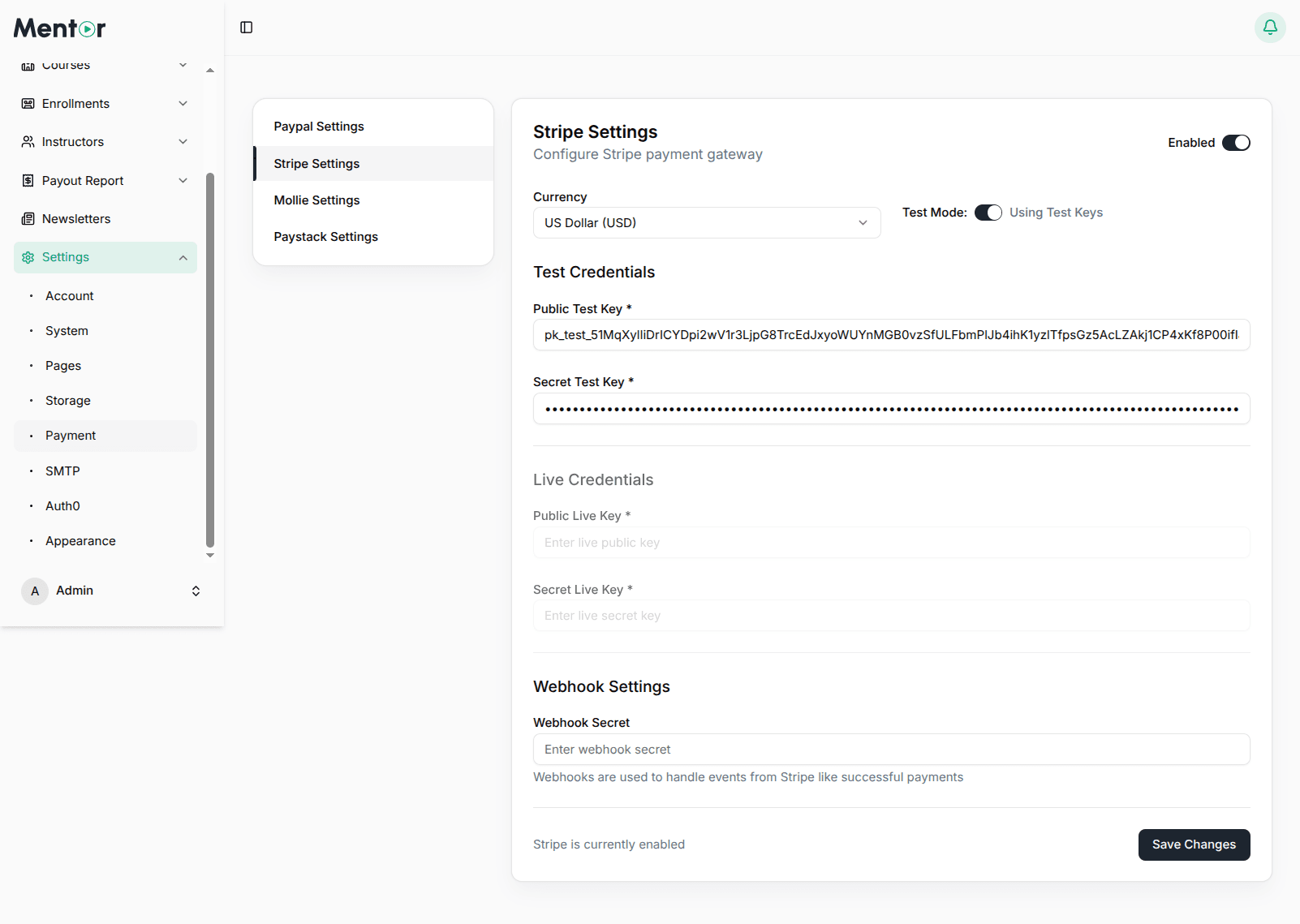
- Toggle Enabled switch
- Toggle Test Mode for development
- Enter Public/Secret keys (test and live)
- Set Webhook Secret
- Click Save Changes
Webhook URL: https://your-domain.com/payment/stripe/webhook
Get credentials from Stripe Dashboard → Developers → API Keys.
Mollie
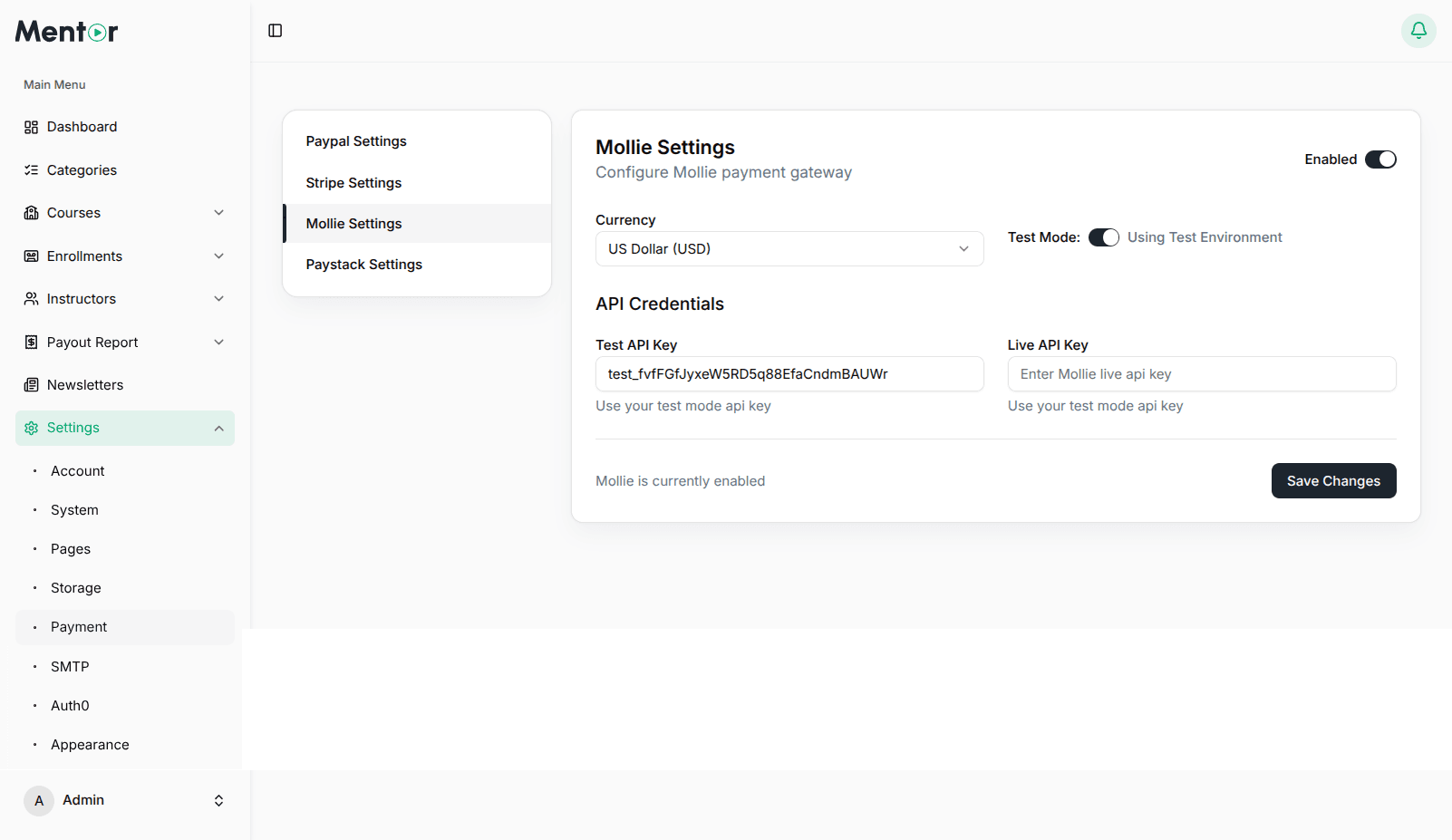
- Toggle Enabled switch
- Toggle Test Mode for development
- Enter Test and Live API Keys
- Click Save Changes
Webhook URL: https://your-domain.com/payment/mollie/webhook
Paystack
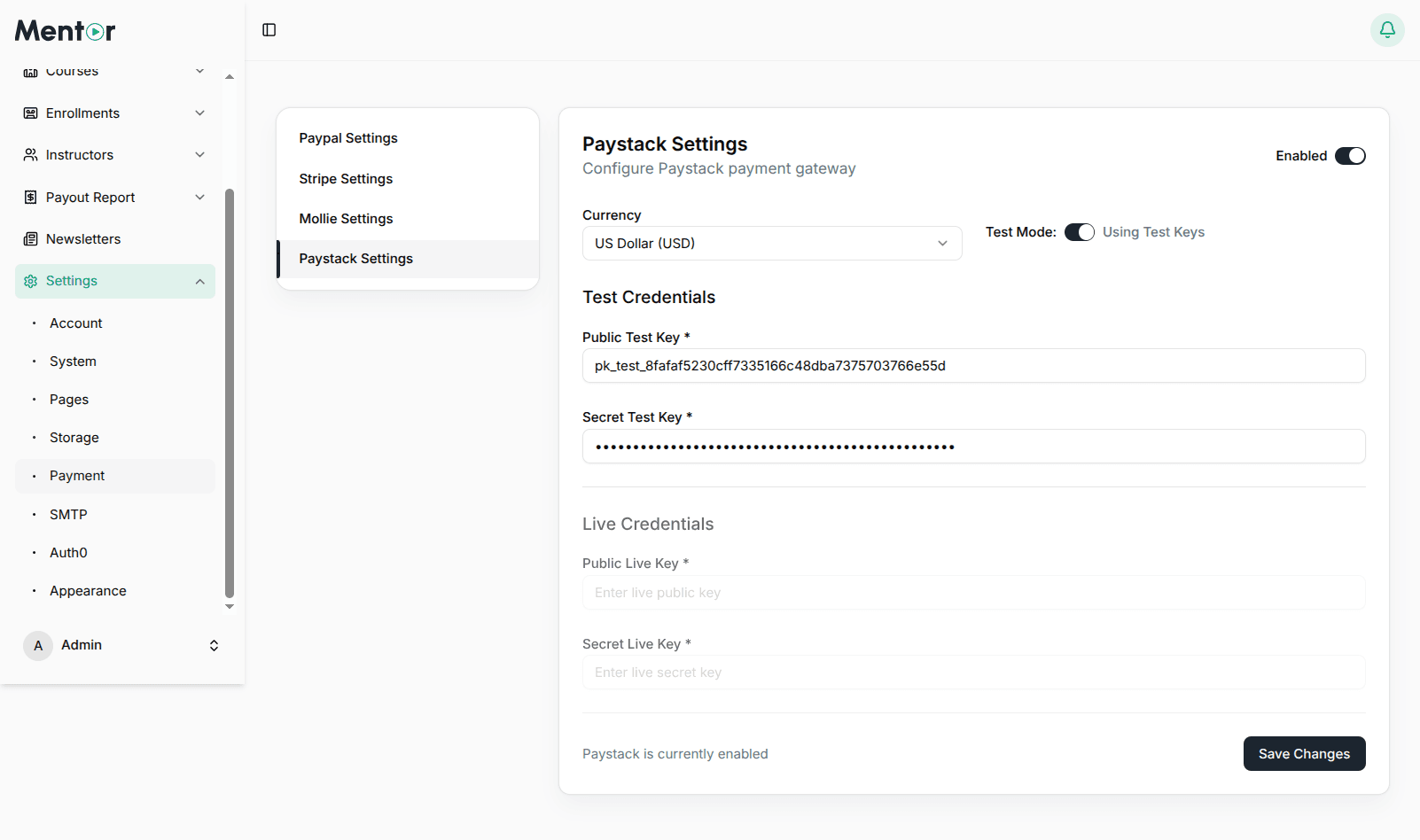
- Toggle Enabled switch
- Toggle Test Mode for development
- Enter Public/Secret keys (test and live)
- Click Save Changes
Webhook URL: https://your-domain.com/payment/paystack/webhook
Razorpay
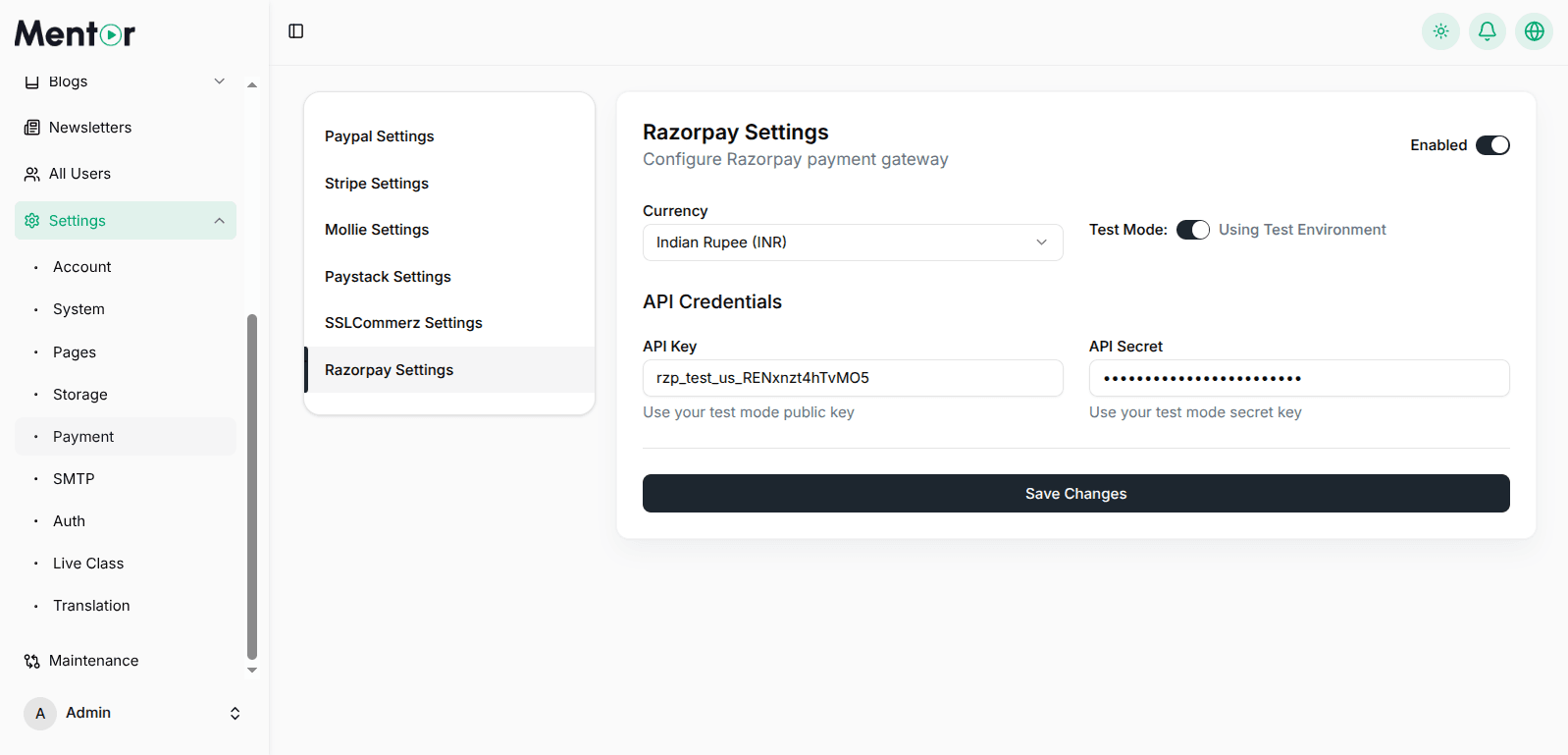
- Toggle Enabled switch
- Select your preferred Currency (e.g., INR)
- Toggle Test Mode for development
- Enter API Key and API Secret
- Click Save Changes
Get credentials from Razorpay Dashboard → Settings → API Keys → Generate Key.
SSLCommerz
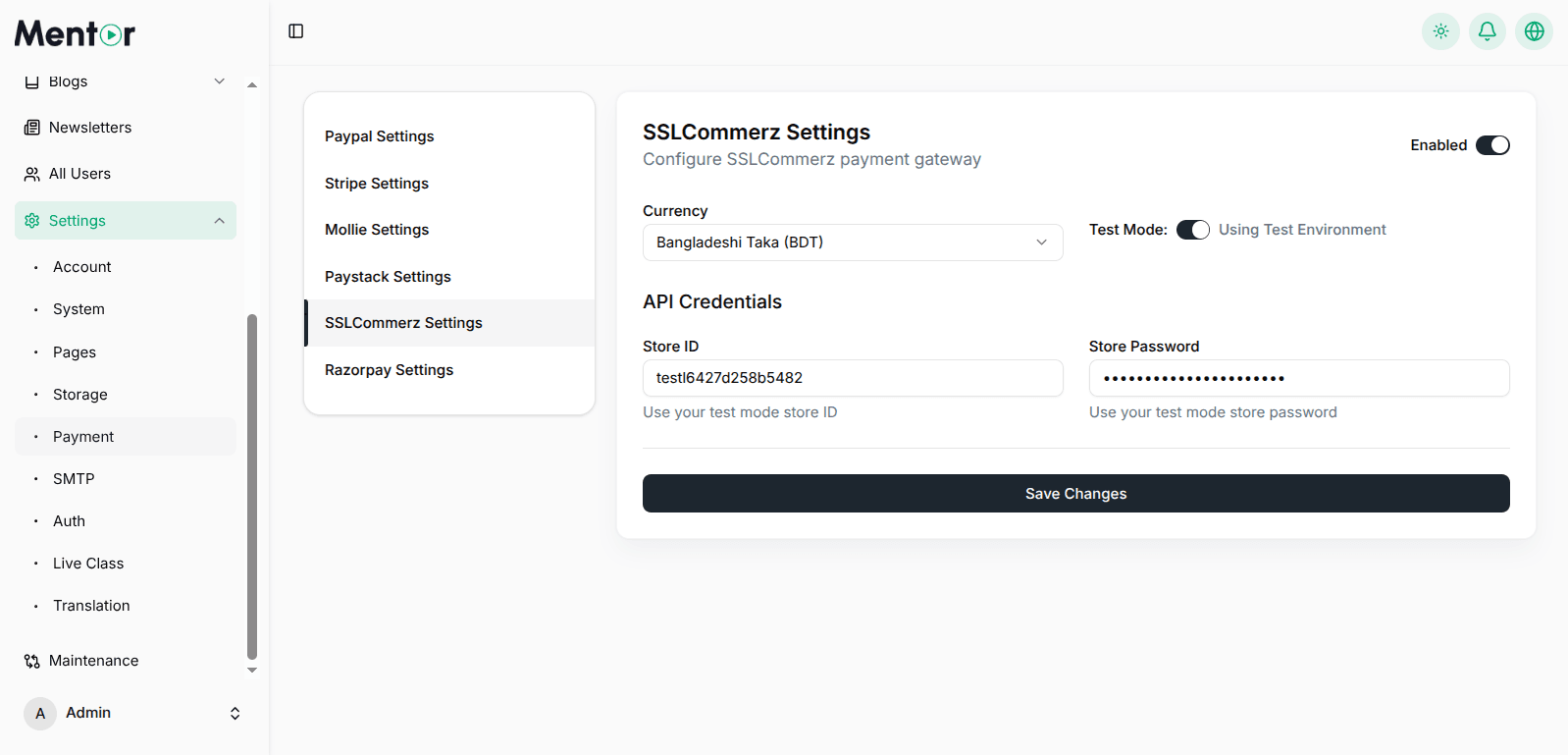
- Toggle Enabled switch
- Select your preferred Currency (e.g., BDT)
- Toggle Test Mode for development
- Enter Store ID and Store Password
- Click Save Changes
Get credentials from SSLCommerz Dashboard.
Testing Payment Gateways
Use these test card numbers in sandbox/test mode:
| Gateway | Test Card |
|---|---|
| Stripe | 4242 4242 4242 4242, any future expiry, any 3-digit CVC |
| Paystack | 4084 0840 8408 4081, any future expiry, any 3-digit CVC |
| Razorpay | 4111 1111 1111 1111, any future expiry, any 3-digit CVV |
| PayPal | Create test accounts in PayPal Developer Dashboard |
| SSLCommerz | Use test cards from SSLCommerz sandbox documentation |