Frontend Customization
Use the drag & drop page builder to create and customize your Mentor LMS website pages without writing code.
Mentor LMS includes a powerful No-Code Drag & Drop Web Builder that allows you to create and customize website pages without writing any code.
Key Features
- Visual Page Editor — Edit pages in real-time with drag & drop
- 40+ Pre-built Sections — Ready-to-use, professional sections
- Component Library — Extensive collection of draggable components
- Full Color System — Customize your entire color scheme
- Responsive Design — Mobile-first, fully responsive layouts
- Media Manager — Upload and manage your media files
- Page Settings — Configure SEO, meta tags, and visibility
Frontend Management Dashboard
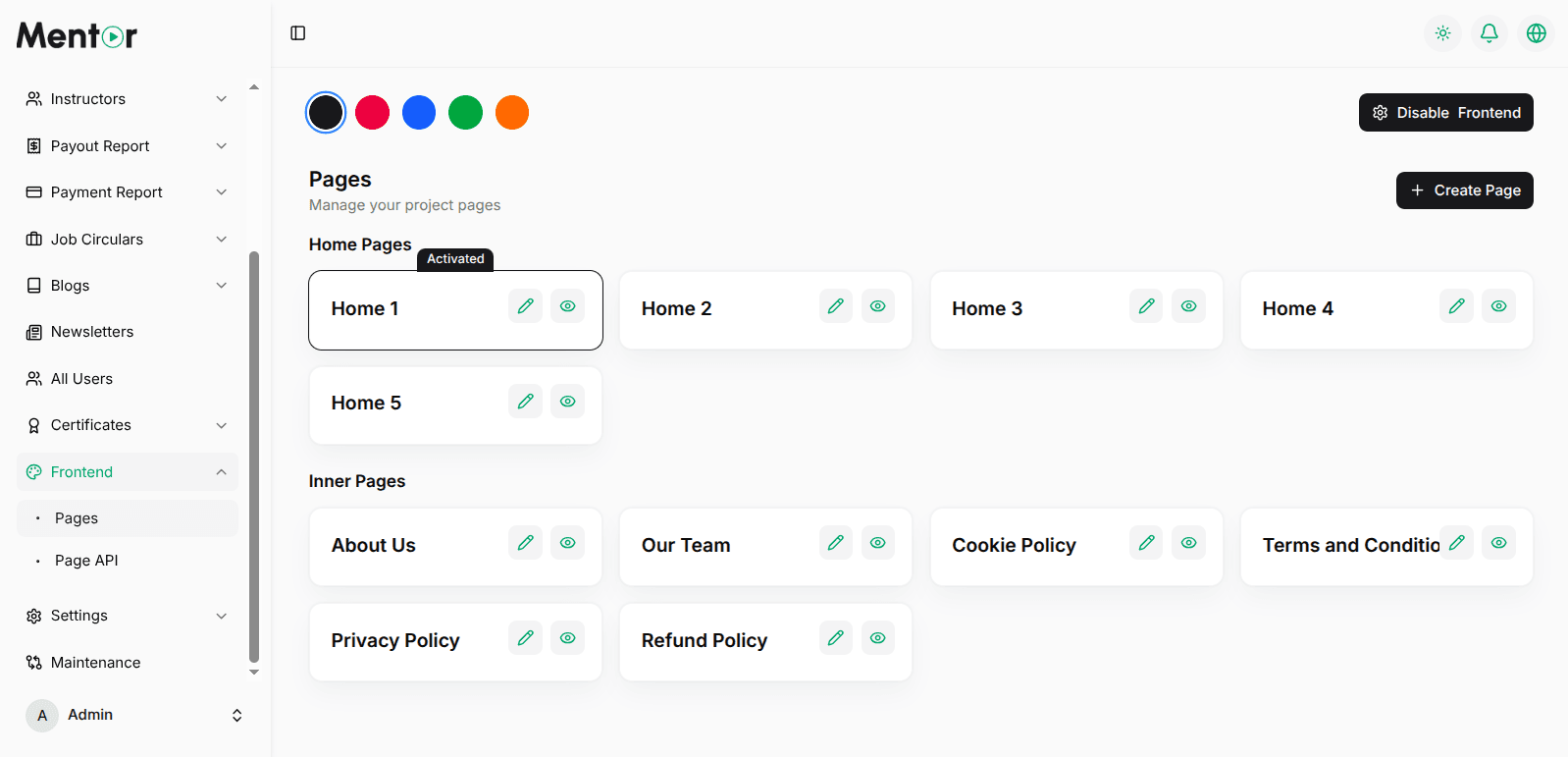
Access from Settings → Frontend to control all aspects of your website pages.
Available Controls
- Frontend Enable/Disable — Toggle frontend visibility on/off
- Color System — Select a Primary color with instant site-wide changes
- Page Management — Create New Pages, manage Home Pages and Inner Pages
- Page Actions — Edit, Preview, Settings, Delete for each page
Drag & Drop Page Builder
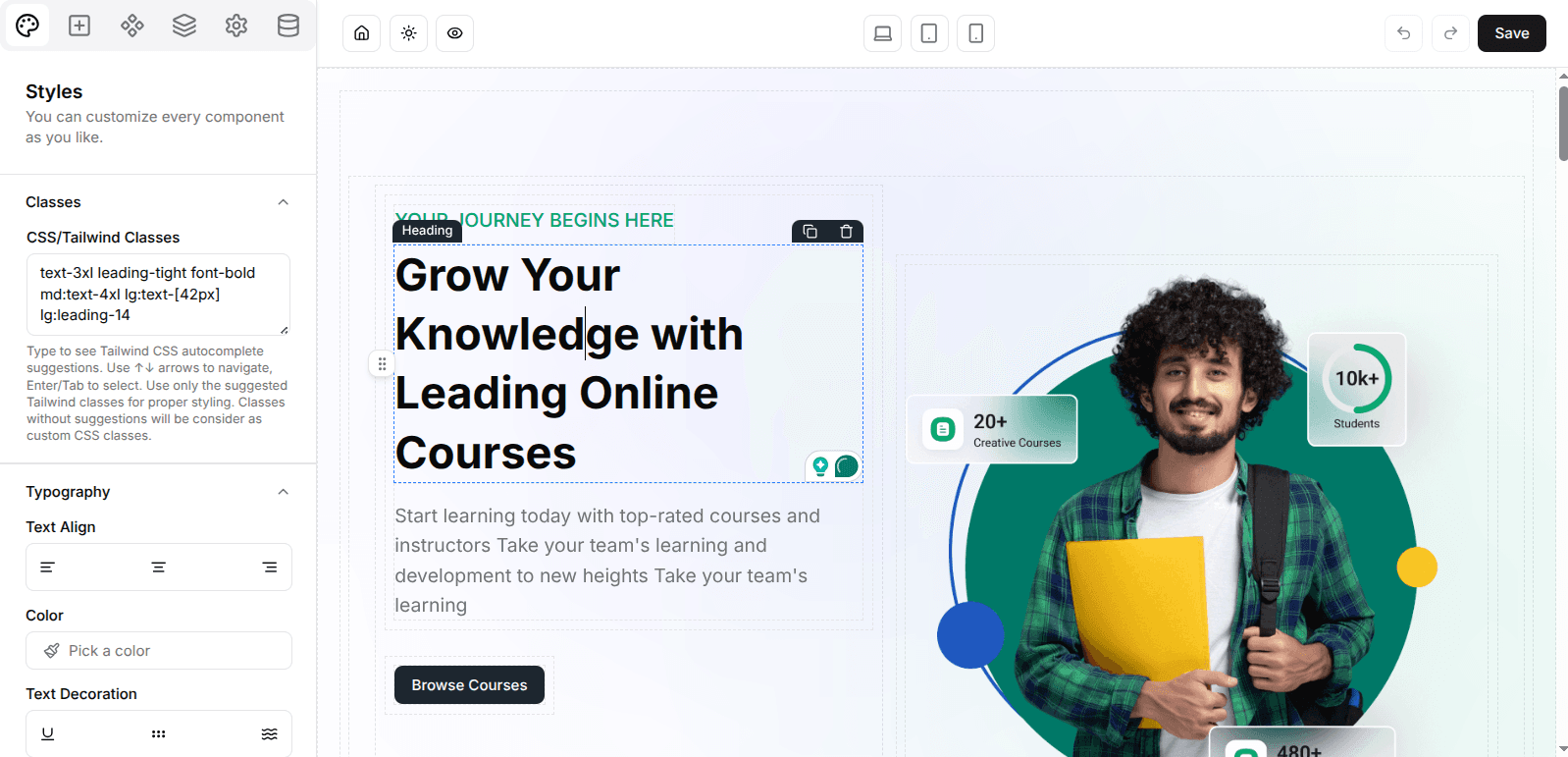
Click the Edit button on any page to launch the visual builder.
Builder Features
- Save, Preview, Undo/Redo — Top navbar controls
- Device Toggle — Desktop, tablet, and mobile preview
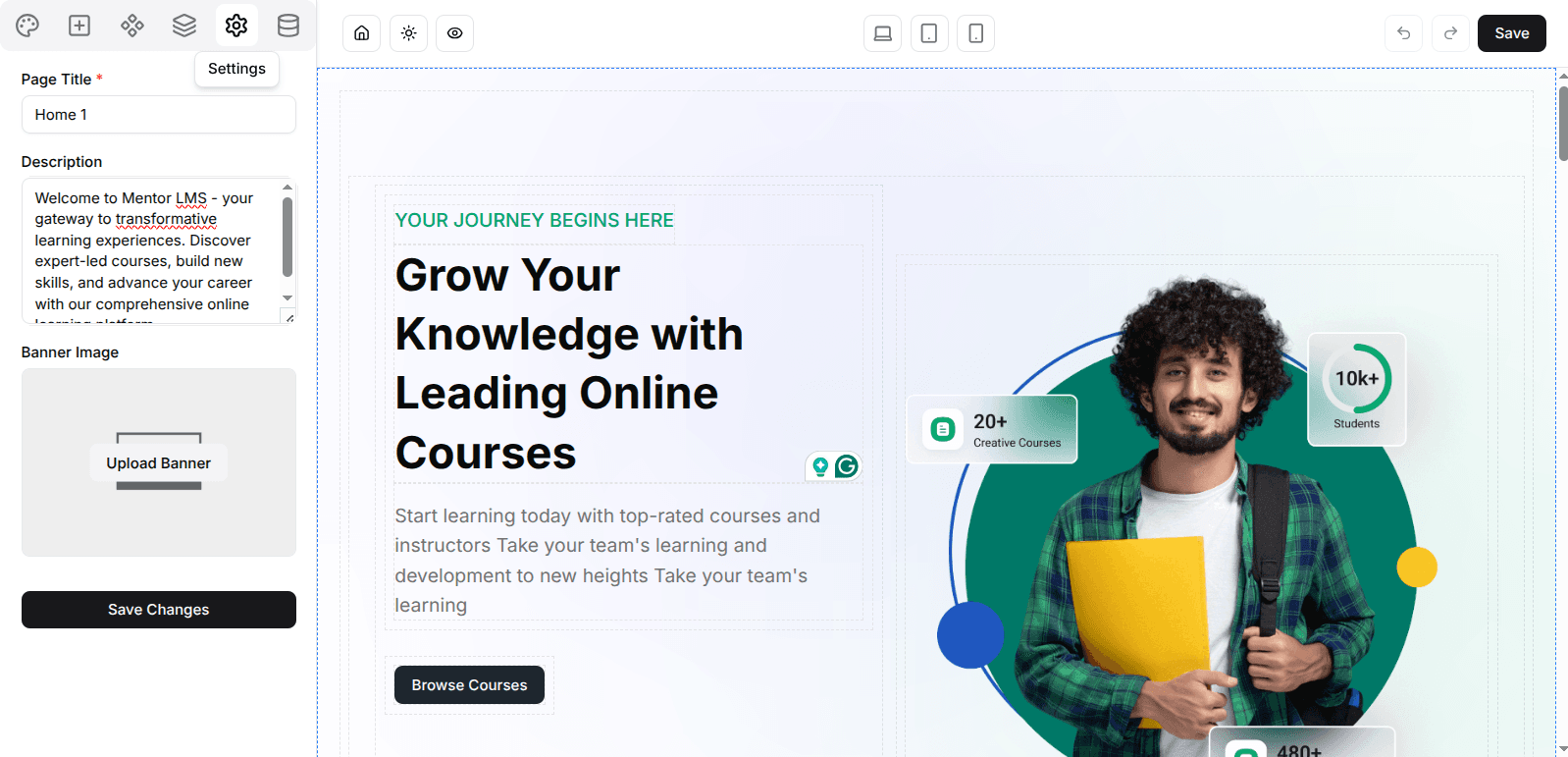
- Page Settings — SEO and meta configuration per page
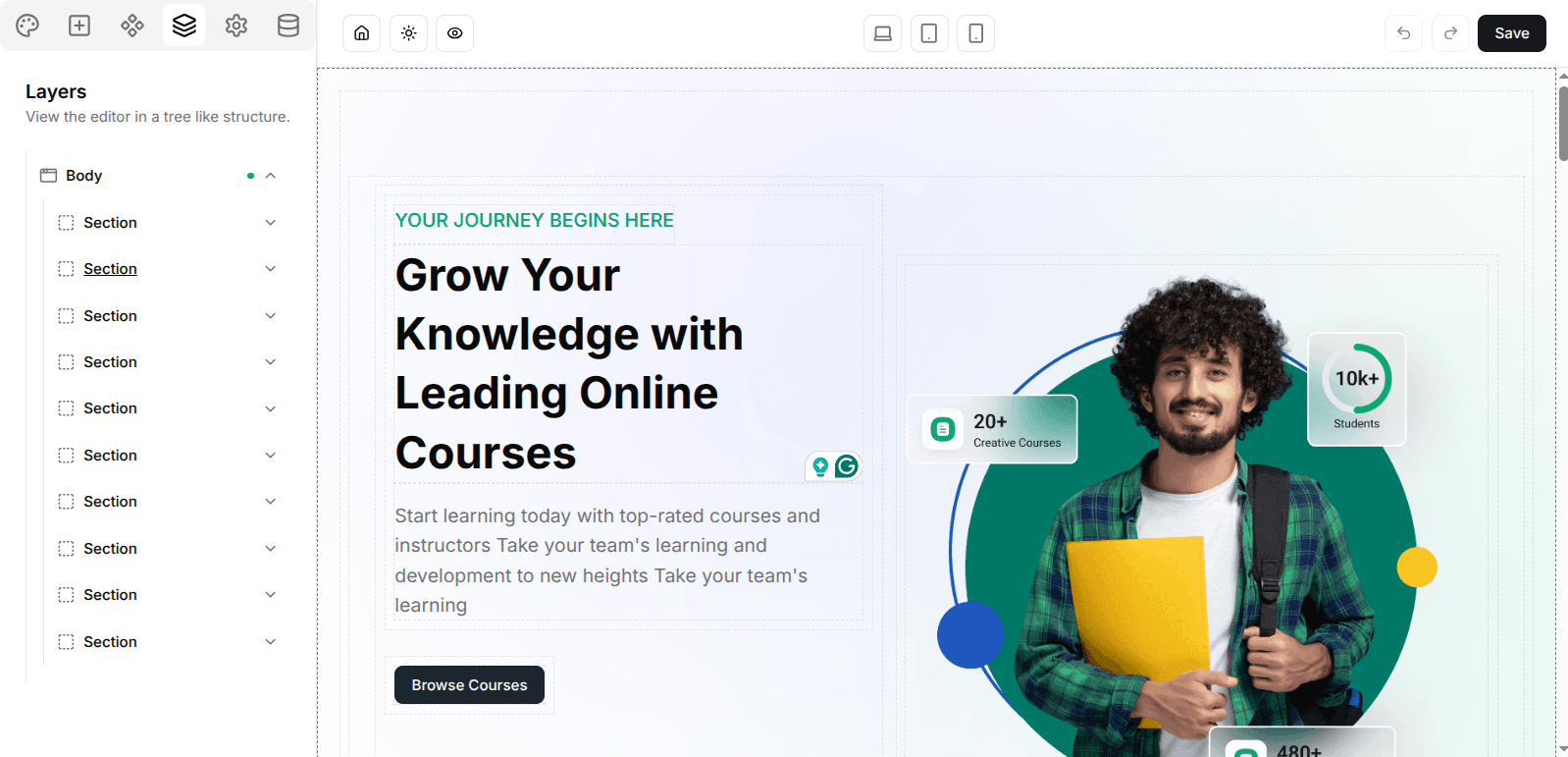
- Structure View — Hierarchical view of your page elements
- Live Editing — Click any element to select and modify in real-time
Component Library
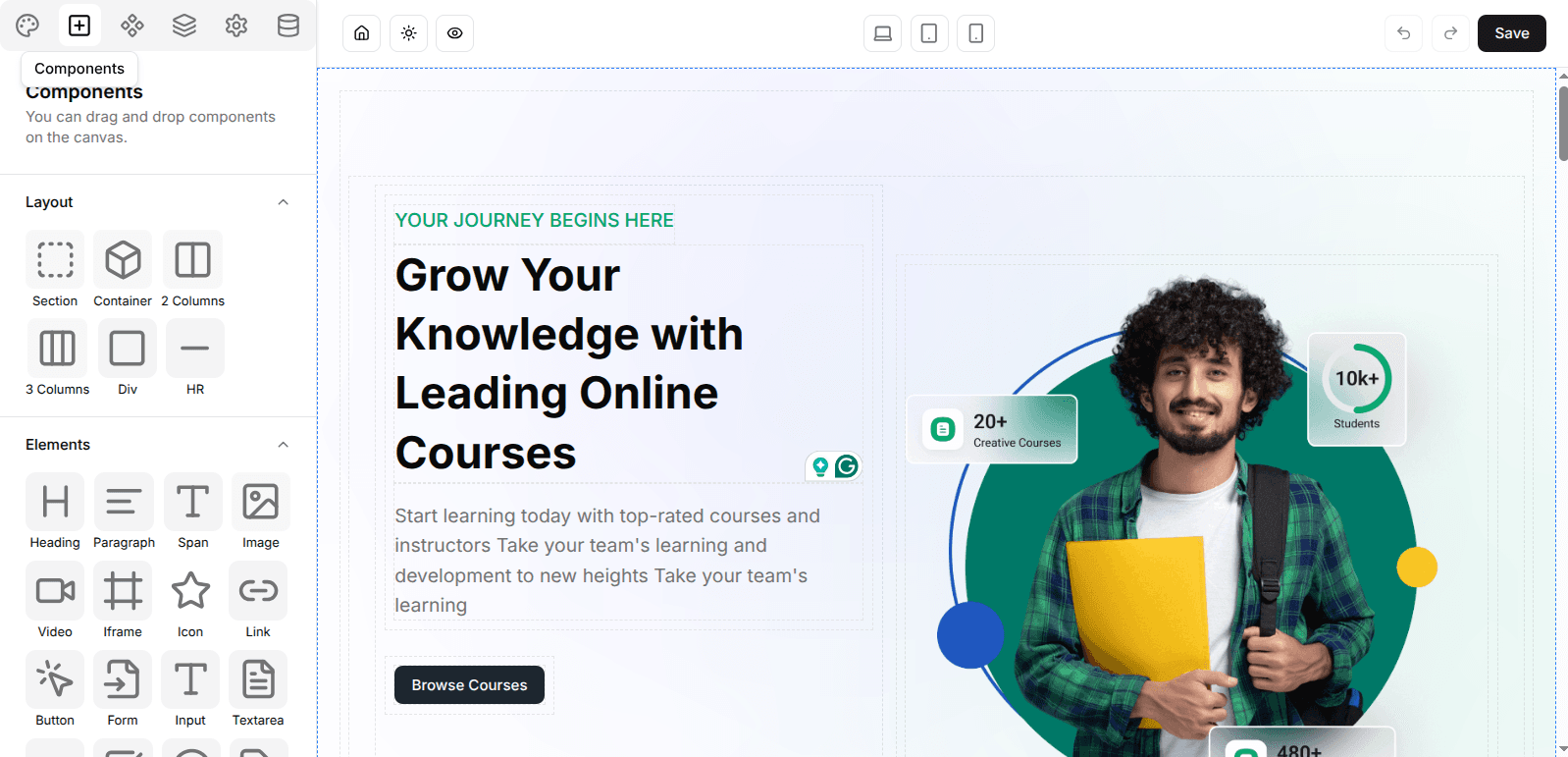
Available Components
Layout: Section, Container, 2 Columns, 3 Columns, Div, HR
Elements: Heading, Paragraph, Span, Image, Video, Iframe, Icon, Link, Button, Form, Input, Textarea, Select, Checkbox, Radio, Label, Header, Nav, Footer, Article, Aside, Dropdown, Popover, Accordion, Tabs, Drawer
How to Use
- Browse the component library in the left sidebar
- Drag your desired component
- Drop it onto the page canvas
- Click to select and edit
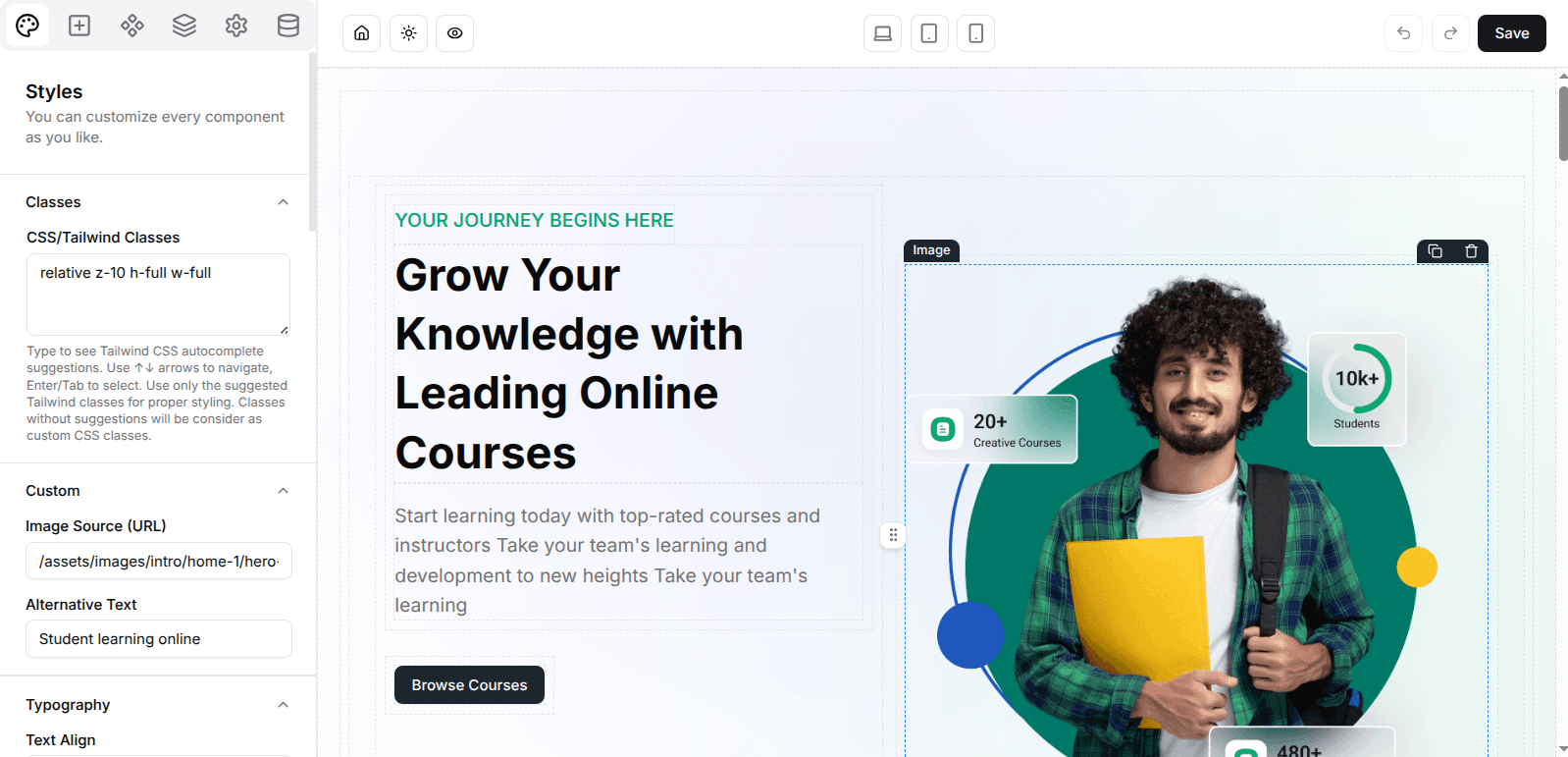
- Customize properties in the right panel
Pre-built Sections Library

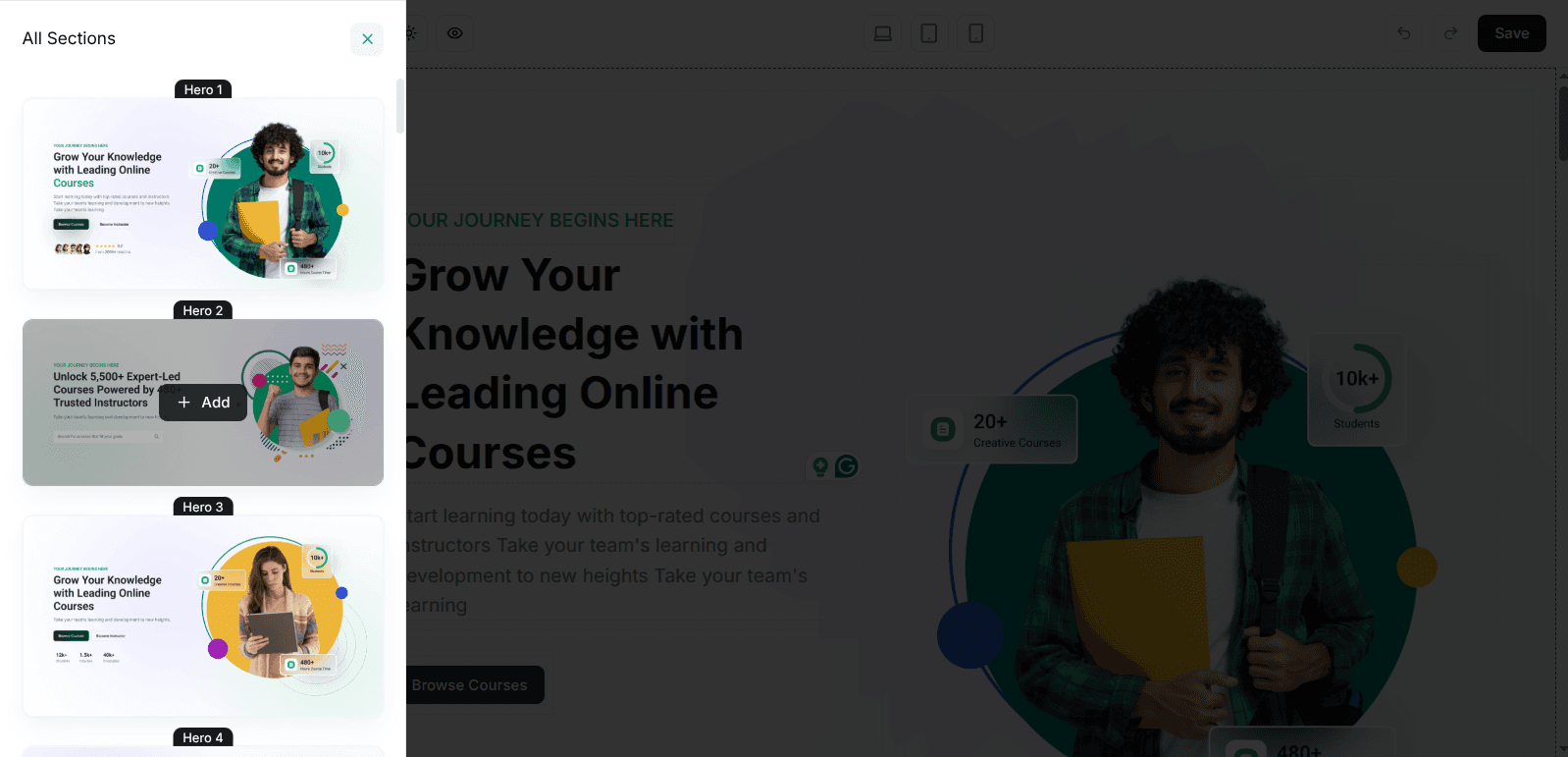
Access 40+ professionally designed sections.
How to Use
- Click the Sections tab in the left sidebar
- Browse through 40+ section templates
- Click any section to preview
- Click Add to Page to insert at cursor position
- Customize text, images, colors, and content
Workflows
Creating a New Page
- Go to Settings → Frontend
- Click Create New Page
- Choose a template or start blank
- Add pre-built sections
- Customize content and images
- Configure page SEO settings
- Preview on different devices
- Publish when ready
Editing an Existing Page
- Navigate to Frontend Management
- Find your page in the list
- Click Edit
- Make your changes
- Preview and save
6. Page Settings
Configure individual page settings including SEO, meta tags, and visibility options.
Media Manager

Supported File Types
- Images — JPG, PNG, GIF, WebP, SVG
File Operations
- Browse, upload, copy URL, delete
- Multiple upload and batch upload supported