Customization
Homepage Customization (Old System)
Customize your Mentor LMS homepage using the legacy customization interface.
This is the legacy homepage customization system. For the new drag & drop builder, see Frontend Customization.
Mentor LMS provides built-in tools to customize your homepage without any coding knowledge.
Accessing Homepage Customization
- Log in to your admin dashboard
- Visit the public homepage of your LMS
- Click the Customize button in the top navigation bar
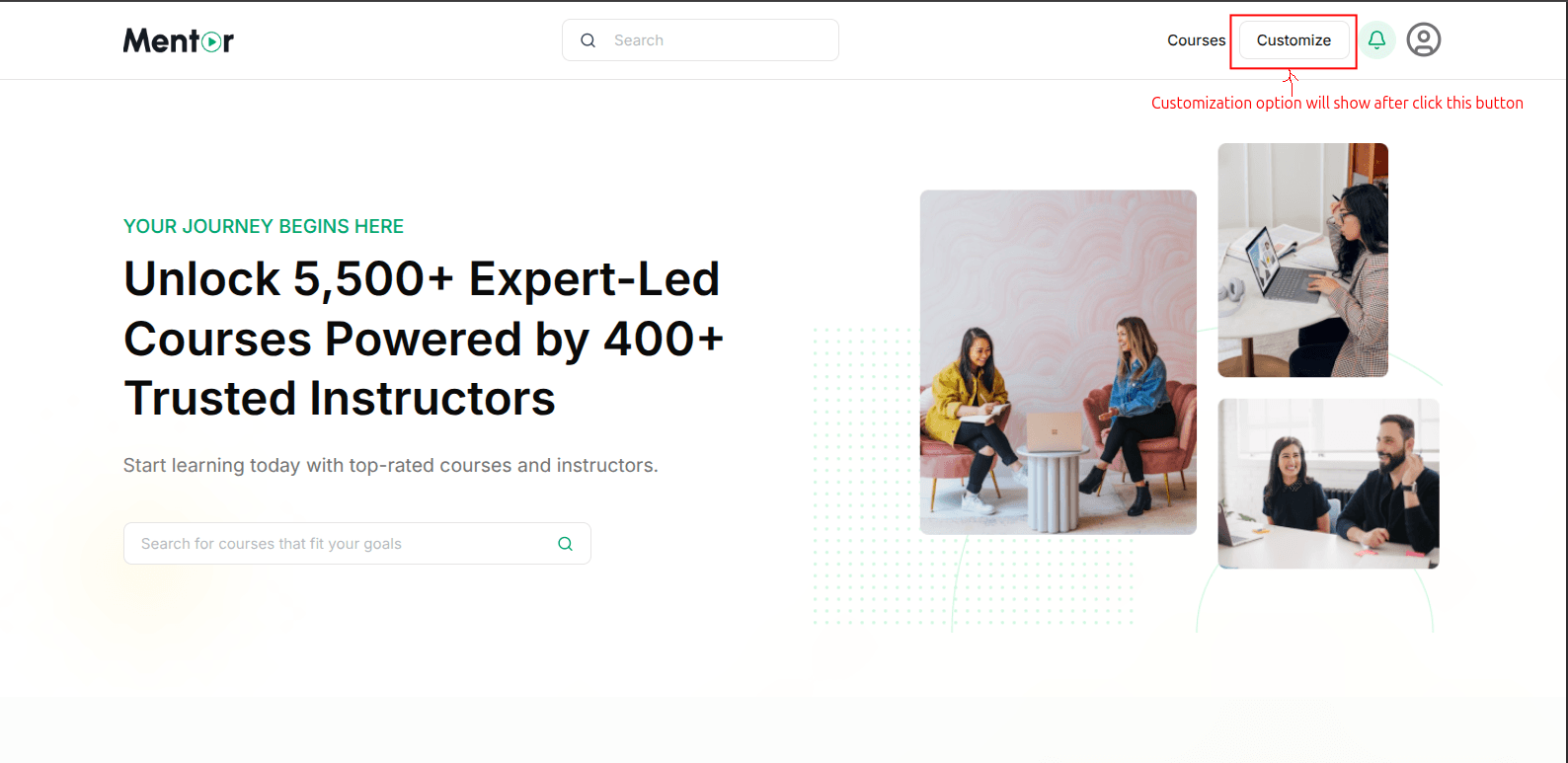
Customization Steps
Step 1: Enter Customization Mode
After clicking Customize:
- The customization interface appears showing your current homepage
- A Back button replaces the Customize button to exit the mode
- Visual indicators highlight editable sections
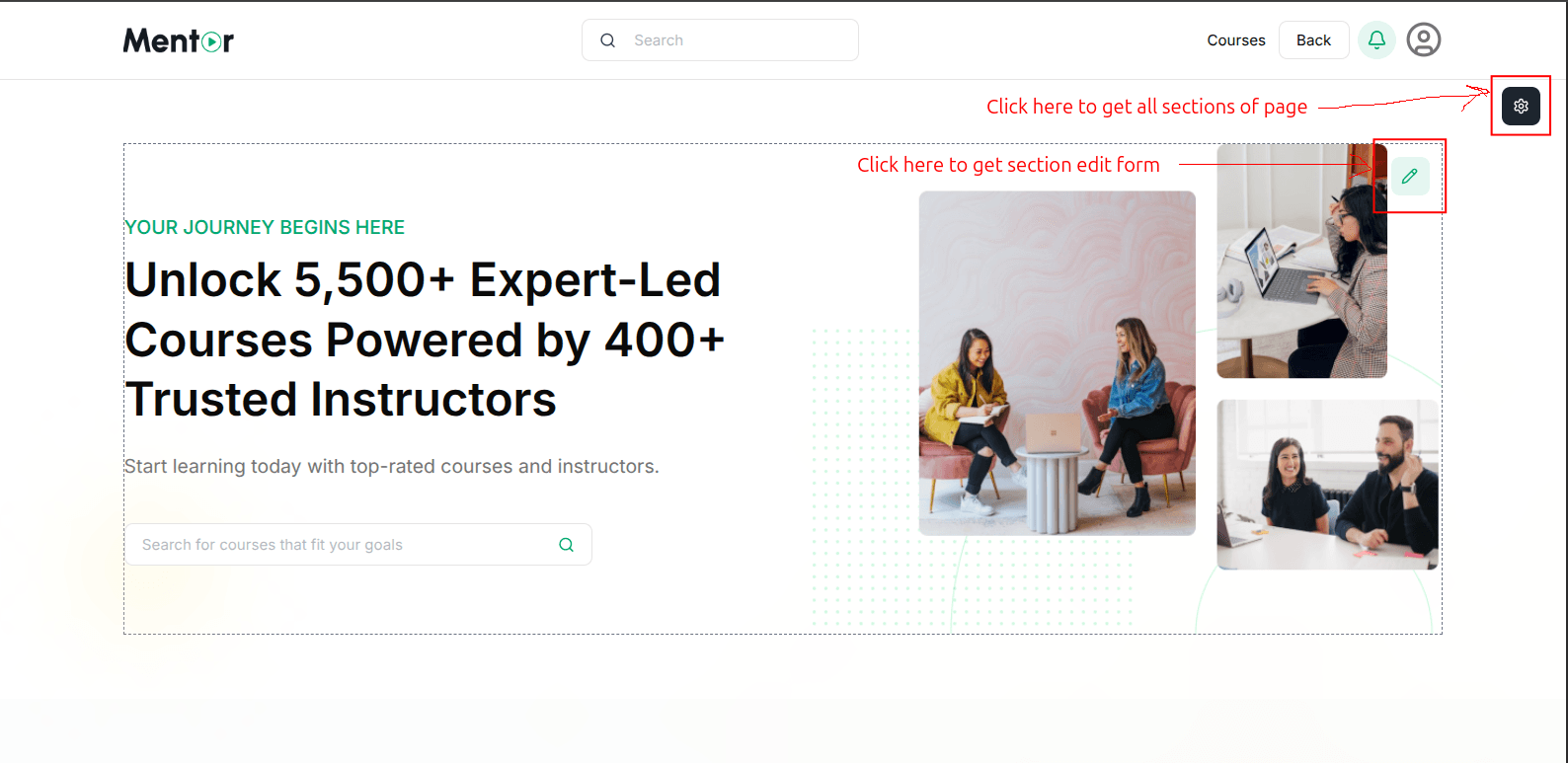
Step 2: Edit Individual Sections
- Hover over the section you want to modify
- Click the pencil icon on the right side of the section
- A section edit form opens in a popup window
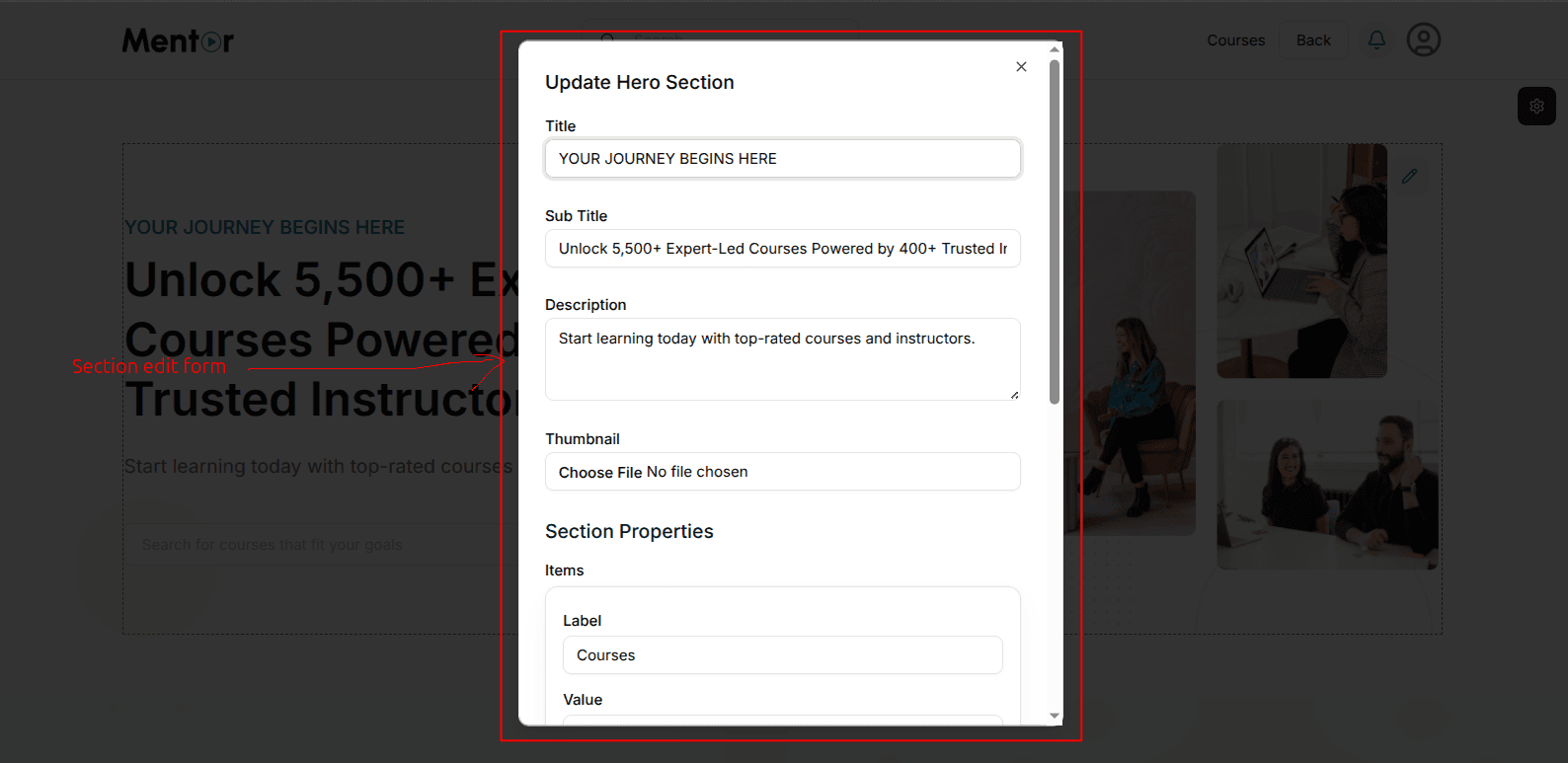
Step 3: Modify Section Content
The edit form allows you to customize:
- Title — The main headline
- Sub Title — The larger text below the title
- Description — Supporting text below the subtitle
- Thumbnail — Upload an image for the section
- Section Properties — Additional configuration options
Complete your edits and click Save to apply changes.
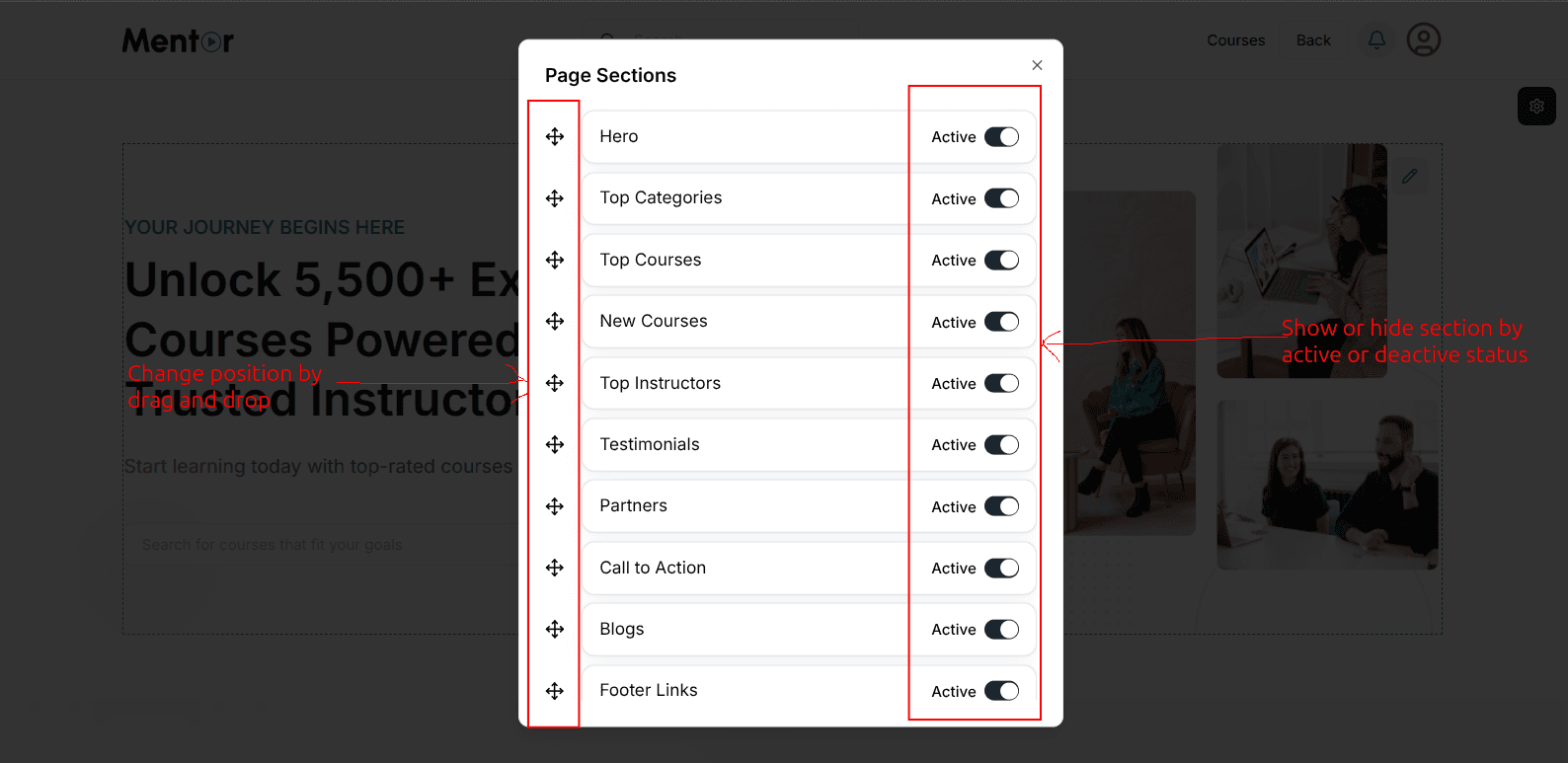
Step 4: Manage Page Sections
- Click the settings icon in the top-right corner
- A "Page Sections" popup appears showing all available sections
- Toggle sections on/off using the Active switches
- Drag sections to reorder them using the handle on the left
- Click X to close when finished
Best Practices
- Keep it clean — Avoid cluttering with too many sections
- Highlight key offerings — Feature your best courses prominently
- Clear CTAs — Use clear call-to-action buttons to guide users
- Mobile check — Verify your homepage looks good on mobile
- Regular updates — Refresh content periodically to feature new courses