Web Installer Wizard
Step-by-step walkthrough of the Mentor LMS web installation wizard.
Mentor LMS includes a user-friendly web installer that guides you through the complete setup process.
Installation Steps
Step 1: Server Requirements Check
The installer checks if your server meets all necessary requirements.
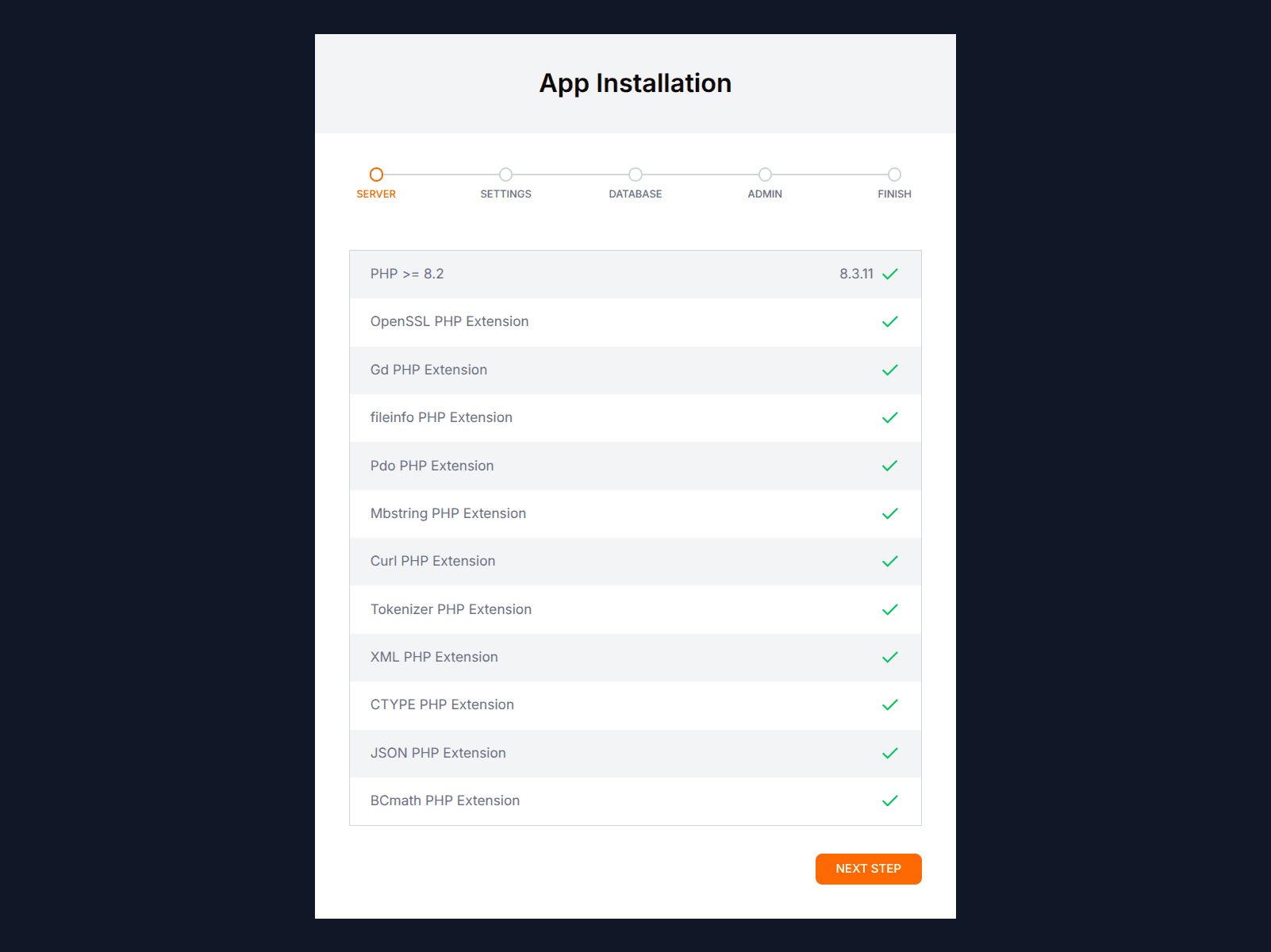
The system will check:
- PHP version
- Required PHP extensions
- Directory permissions
- Server settings
If any requirements are not met, they will be marked in red. Resolve these before proceeding.
Step 2: Application Settings
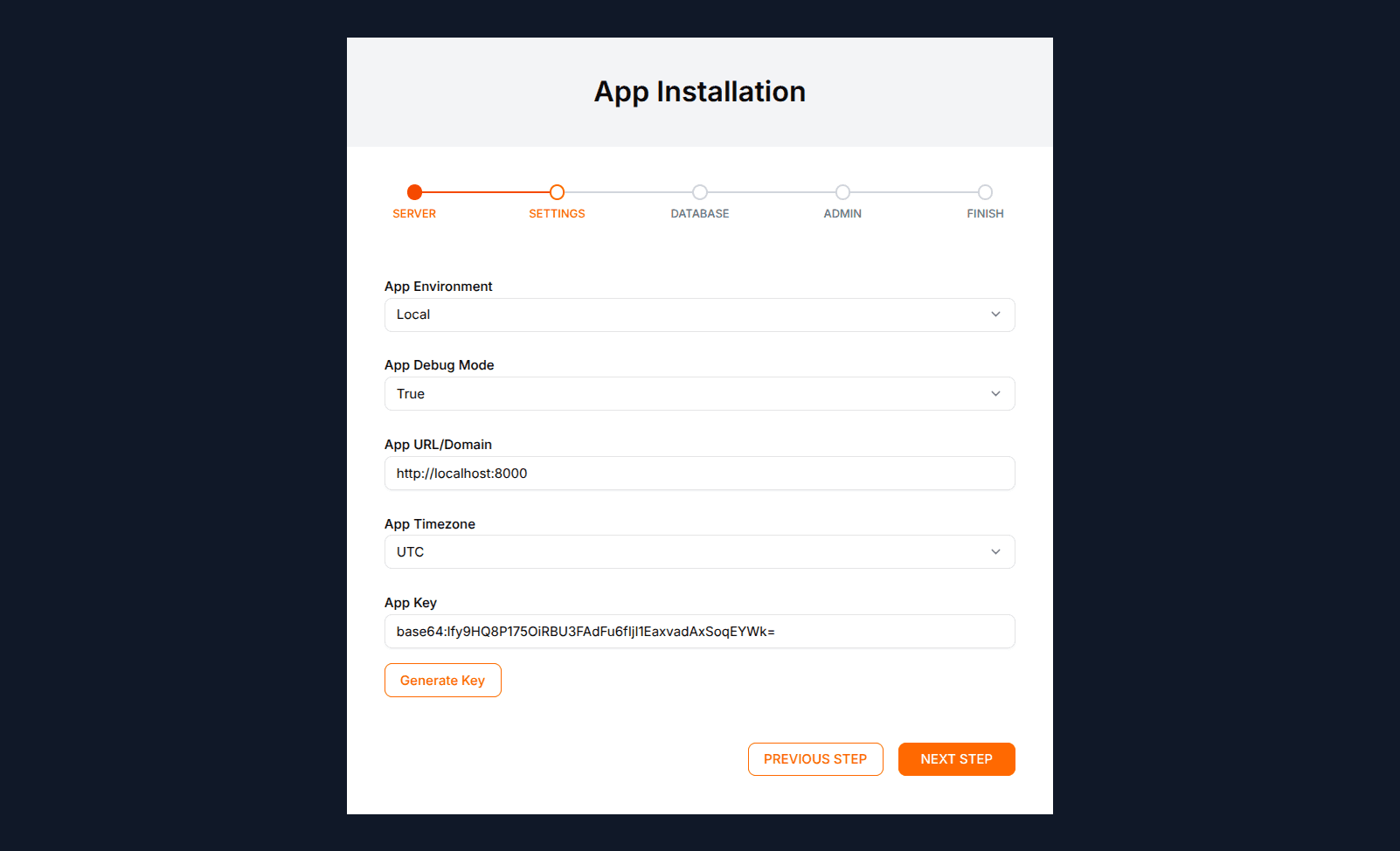
Fill in the basic application settings:
- Application Name: The name of your LMS platform
- Application URL: The full URL where your application will be accessible
- Application Environment: Select "Production" for a live site or "Development" for testing
- Timezone: Select your local timezone
- Purchase Code: Enter the purchase code from your CodeCanyon order
The system will verify your purchase code online before proceeding.
Step 3: Database Configuration
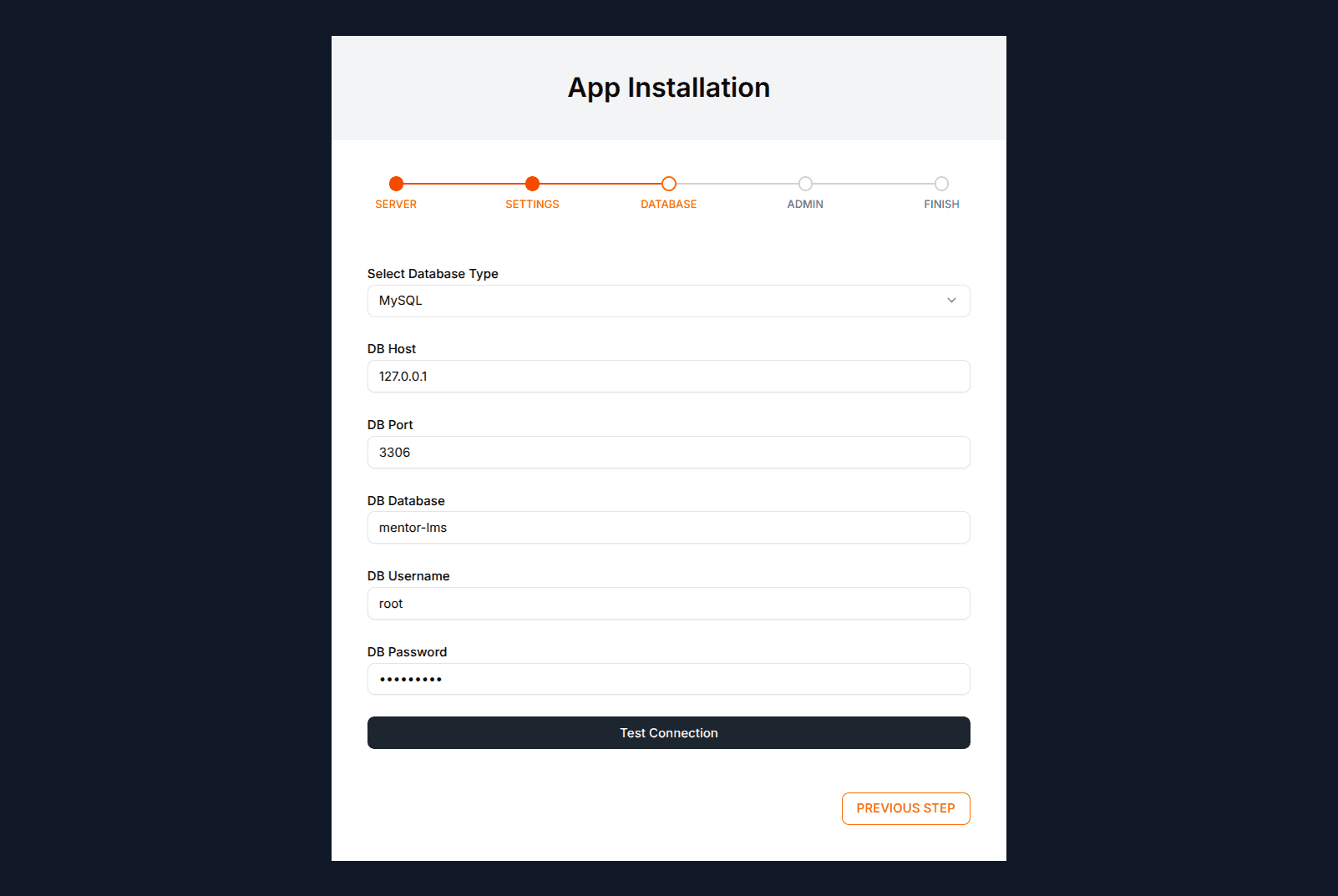
Connect your database:
- Database Connection: Usually
mysql - Database Host: Your database server address (usually
localhost) - Database Port: Usually
3306for MySQL - Database Name: The name of the database you created
- Database Username: Username for database access
- Database Password: Password for database access
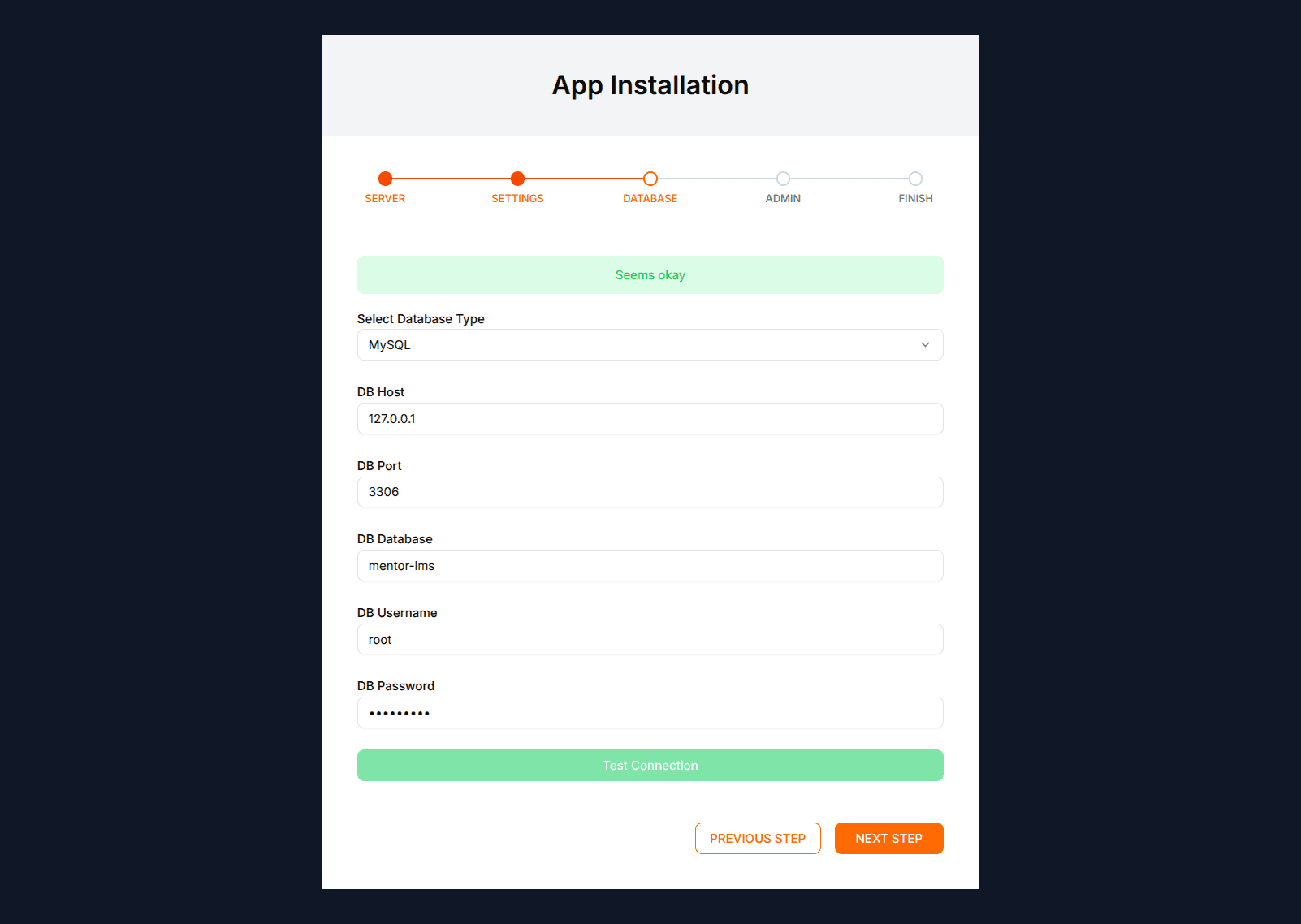
The installer will test the connection before proceeding.
Step 4: Administrator Account Setup
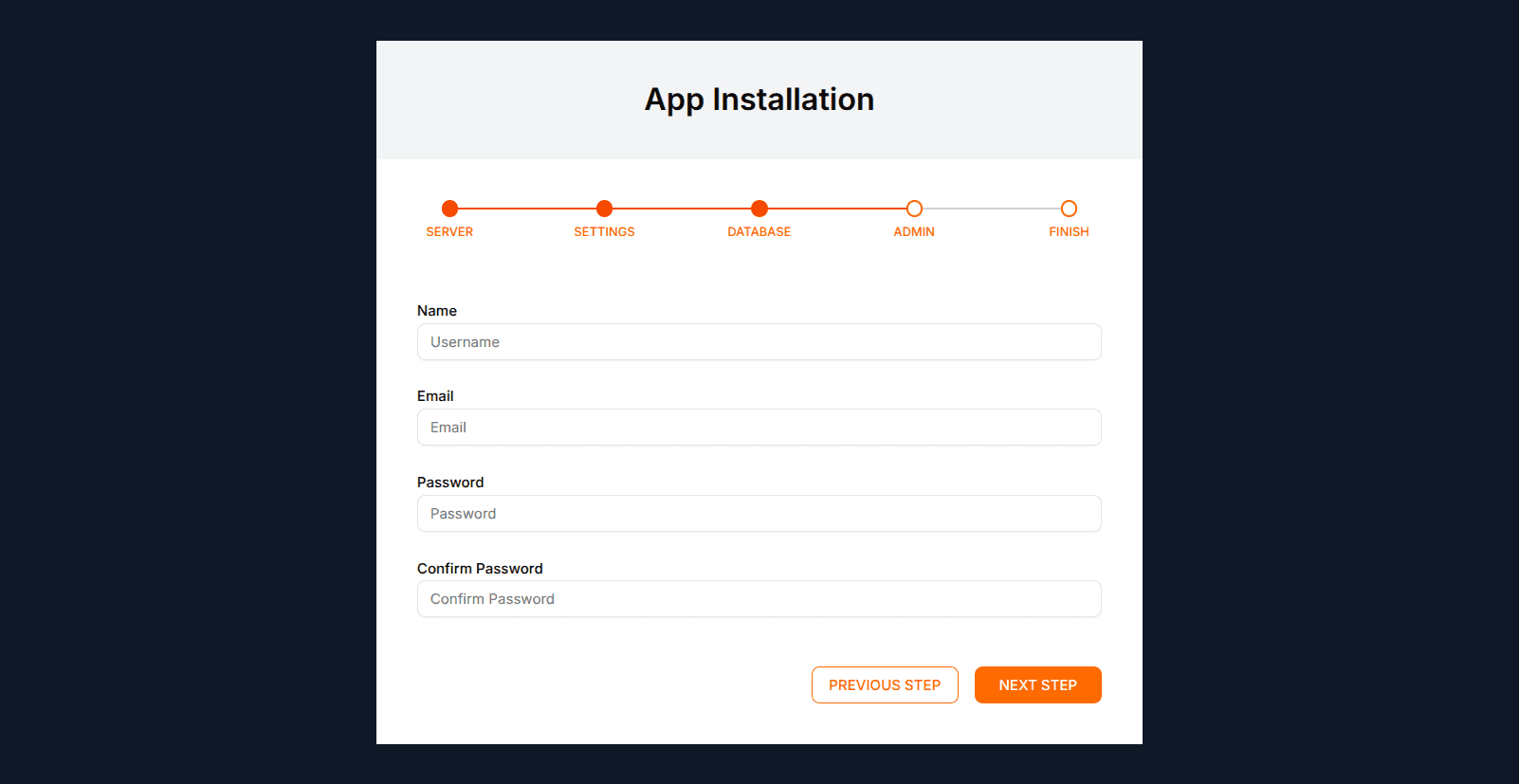
Create the primary admin account:
- Admin Name: Your full name
- Admin Email: Your email address (used for login)
- Admin Password: Create a secure password
- Confirm Password: Re-enter your password
Step 5: Platform Mode Selection
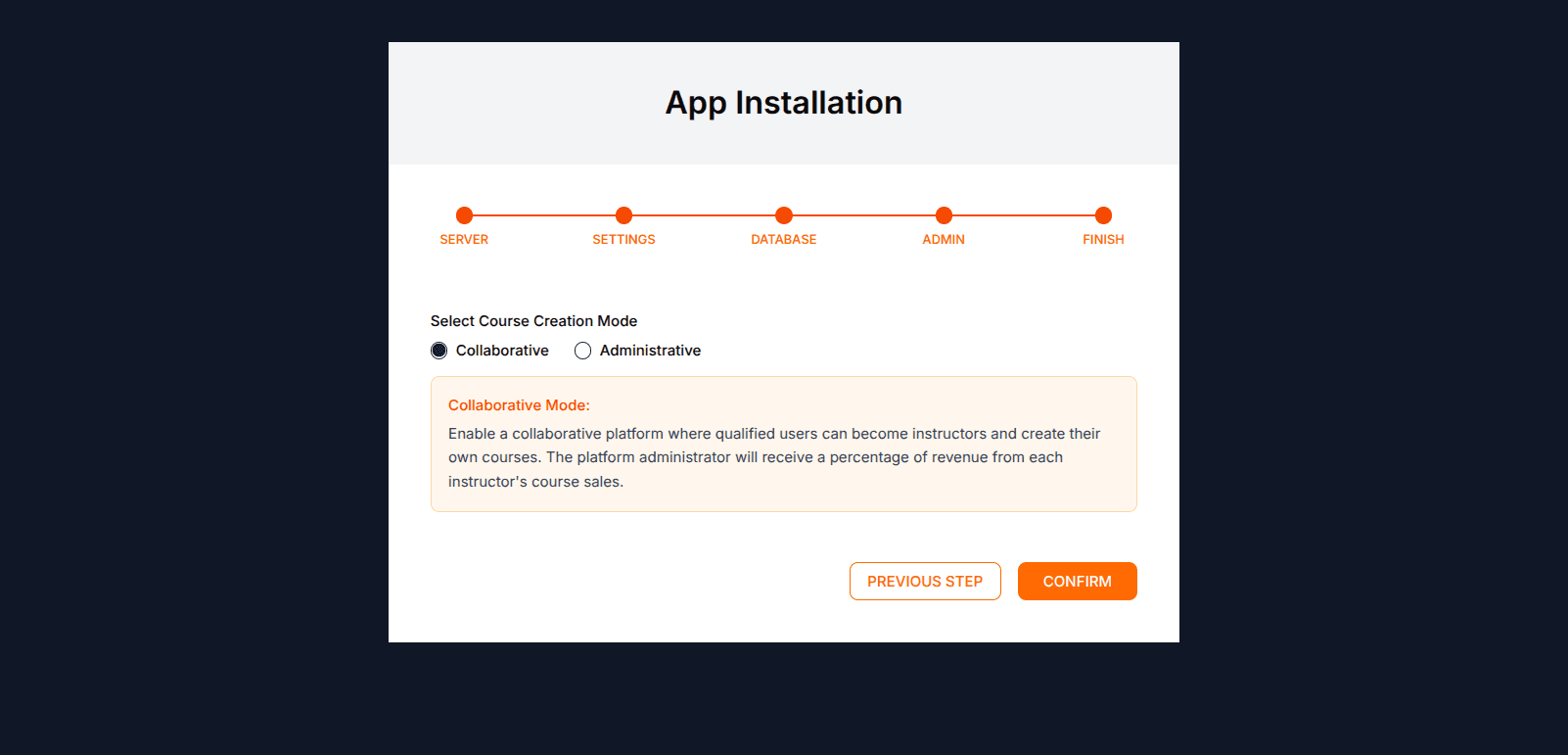
Choose the platform operating mode:
- Administrative Mode: Only administrators can create courses
- Collaborative Mode: Approved instructors can create and sell courses
Click Confirm to complete the installation. Once seeding finishes, you'll be automatically redirected to the homepage.
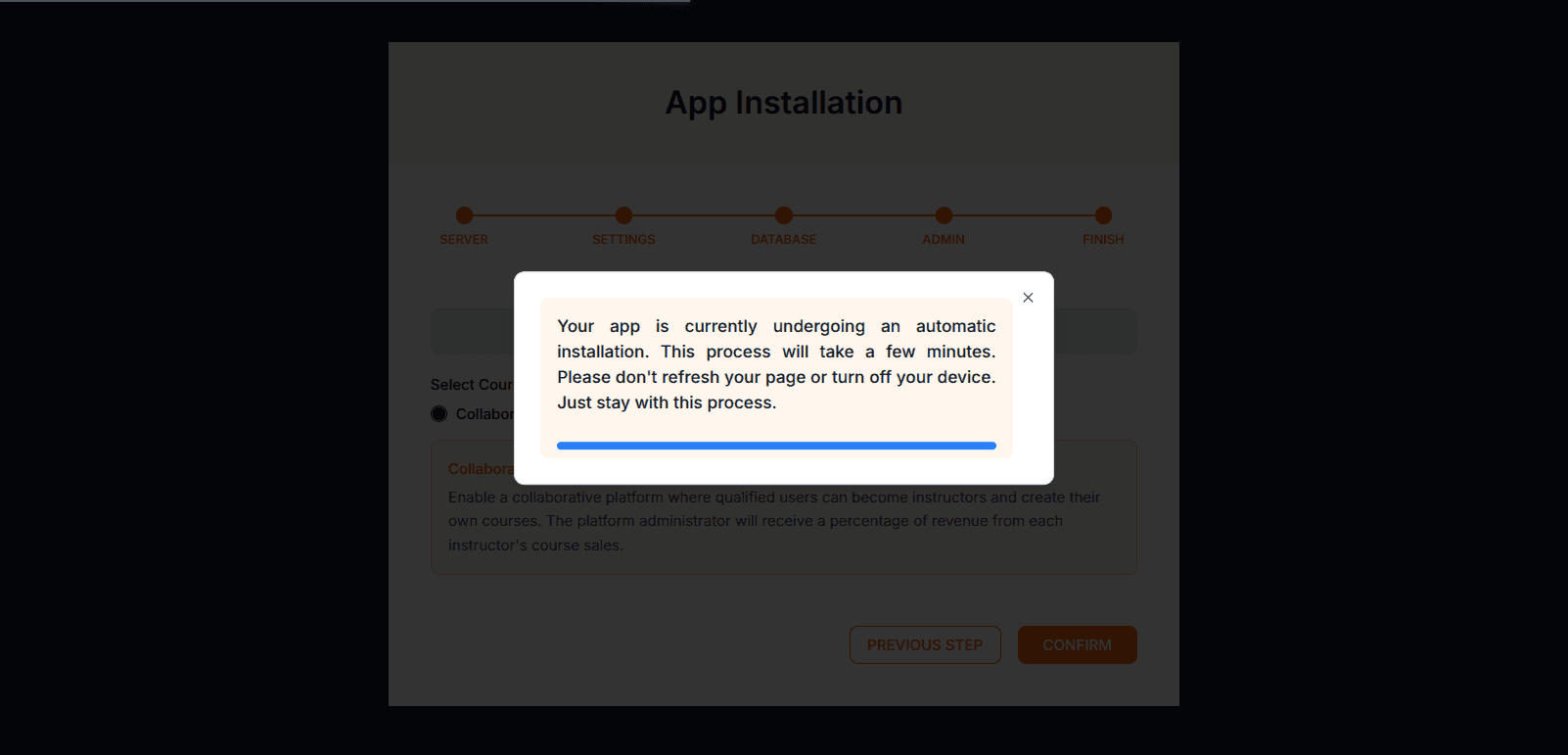
Troubleshooting Installation Issues
Try refreshing the installation:
Visit https://your-domain.com/install/refresh to restart the installation process.
Still having trouble?
- Clear your browser cache and try again
- Check error logs in
storage/logs/ - Verify the
installedfile exists instorage/app/public/(delete it and retry if the install failed midway)
Contact support:
Visit support.ui-lib.com and create a support ticket with the error details and any log attachments.